



If you’ve ever felt calm walking into an exam, it probably wasn’t because you suddenly became fearless. It was because you removed the small surprises.
In IB Math, one of the biggest “small surprises” is a calculator that isn’t in exam mode yet. It’s the kind of detail that can turn a good morning into a shaky first 15 minutes. So let’s make it boring, on purpose.
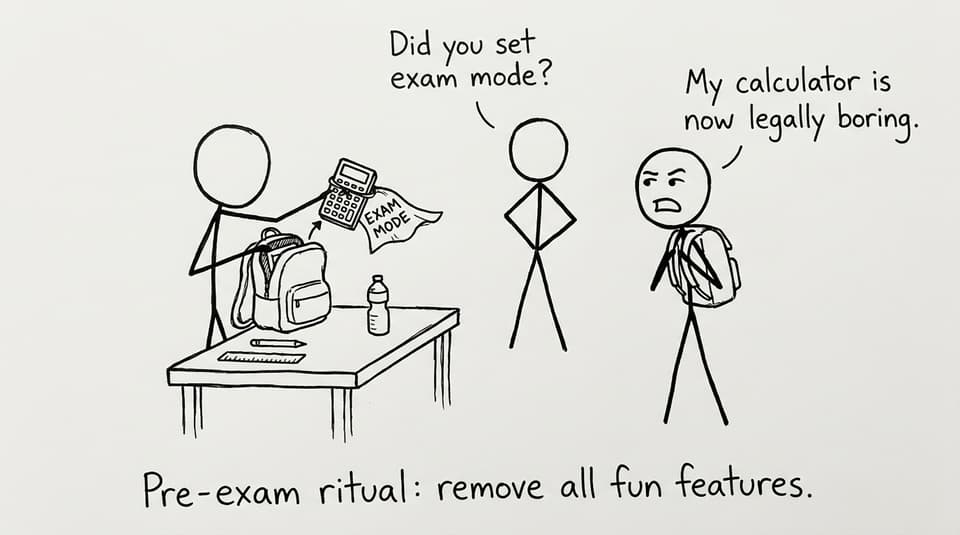
IB Math exam mode quick checklist (do this before exam day)
Before you practice or sit the real thing, get these basics locked in for IB Math:
-
Confirm your calculator model is allowed and non-CAS (ask your coordinator if unsure). See: Forbidden calculators in IB exam
-
Practice the exam mode steps once at home (not for the first time at your desk in silence).
-
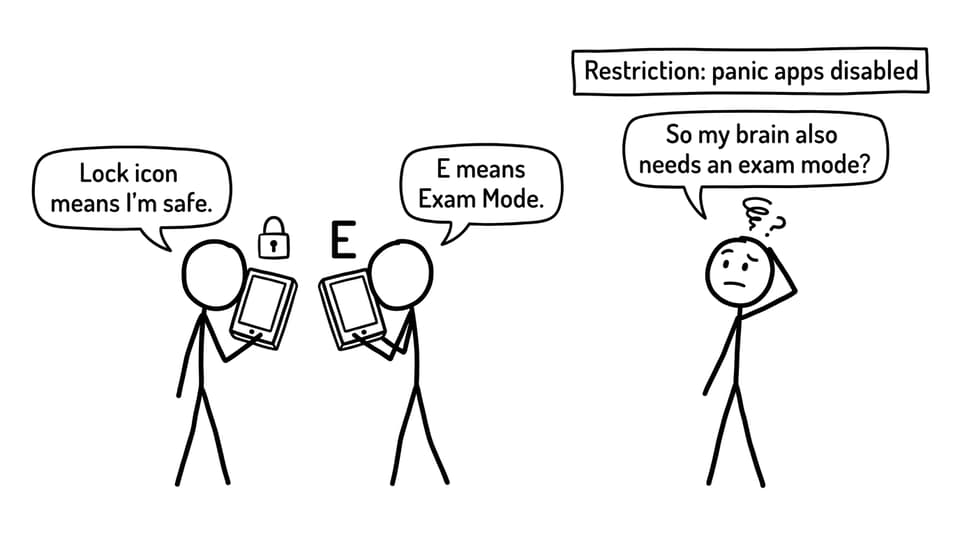
Know what the “exam indicator” looks like (lock icon, “E”, etc.).
-
Pair your setup with a short timed drill so the restricted interface feels normal.
For broader calculator tactics in IB Math, keep this guide nearby: How to Use Graphing Calculators During IB Math Exams
Step-by-step: putting your calculator in exam mode for IB Math
Different models, same goal: restrict access and show a visible indicator.
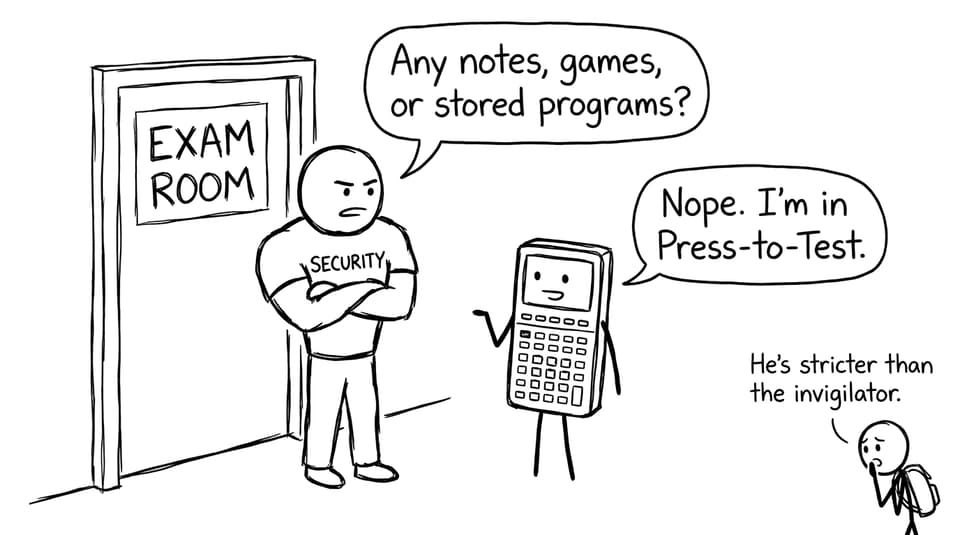
TI-Nspire CX: Press-to-Test (exam mode)
For IB Math students using a TI-Nspire CX (non-CAS), the steps are:
-
Press [esc] + [on] to open the setup menu.
-
Go to Press-to-Test via [menu] > 9 > 1.
-
Select the restrictions required for your exam session.
-
Press [enter] to activate Press-to-Test.
Your calculator will restart, and you should see a lock symbol on the home screen. That lock is your quiet proof that you’re in exam mode.
TI-84 Plus CE: exam mode activation
If you’re on a TI-84 Plus CE for IB Math, do this:
-
Turn off the calculator.
-
Press and hold the left and right arrow keys, then turn it back on.
-
Choose the required restrictions, then press [enter].
-
Confirm, then press [enter] again.
It will reboot into exam mode with the appropriate restrictions applied.
If the TI-84 is your daily tool for IB Math, you’ll also like: How to Use the TI-84 Calculator for IB Math AA
Casio FX-CG50: exam mode steps
For Casio FX-CG50 users in IB Math:
-
Turn on your calculator.
-
Press [shift] + + to open the setup menu.
-
Press [cos] + + at the same time.
-
Set restrictions as your school/exam requires.
-
Press [exit] to save and activate.
You should see an “E” symbol indicating exam mode.
Make exam mode part of your IB Math practice (not a last-minute ritual)
Here’s the underrated truth: exam mode isn’t just compliance. It’s rehearsal. The menus feel different, and even tiny friction can cost you time.
A good loop looks like this:
-
Learn the method quickly using your Study Notes on RevisionDojo (start here: IB Mathematics Analysis and Approaches Resources).
-
Drill the exact skill with targeted sets from the Questionbank (example topic hub: Math AA Calculus Questionbank).
-
Turn on exam mode and run a timed mini-set to match pressure.
RevisionDojo makes that system easy to repeat with Flashcards for recall, AI Chat when you get stuck mid-solution, and Mock Exams plus Predicted Papers when you want full pacing practice. If you’re rebuilding your week, borrow the structure from: The Ultimate IB Math Study Routine for Busy Students
The calm finish: make your IB Math exam mode routine automatic
The goal isn’t to become a “calculator expert.” The goal is to walk into IB Math exams with fewer moving parts.
Do the exam mode steps once today. Do them again during a timed set this week. Then let RevisionDojo handle the heavy lifting after that: Study Notes for clarity, Questionbank for focused practice, Mock Exams and Predicted Papers for realism, plus Grading tools, the Coursework Library, and Tutors when you want another set of eyes.
When exam day comes, your calculator will be boring. And you’ll be free to think.