


When the exam clock starts, your TI-84 can feel like either a quiet teammate or a chaotic roommate. Same buttons. Same screen. Completely different outcome.
Most IB Math students don’t lose marks because they “don’t know the math.” They lose marks because they waste time fighting settings, hunting for a menu they once used, or trusting a decimal that should have been checked. The goal of this guide is simple: make the TI-84 feel boring in the best way possible. Reliable. Predictable. Fast.
Along the way, you’ll see how to use the TI-84 for IB Math AA graphing, solving, statistics, matrices, and calculus. And you’ll build a tiny checklist you can rehearse until it becomes muscle memory.
The fast TI-84 checklist for IB Math
Keep this as your pre-practice and pre-exam ritual for IB Math:
-
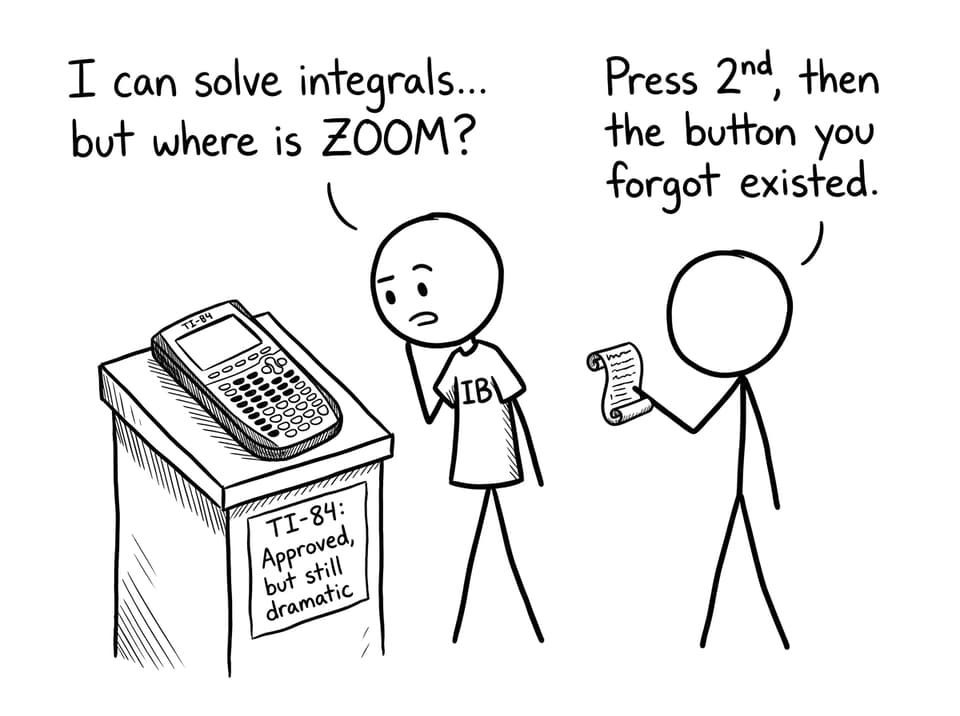
Confirm MODE: Degree/Radian (as needed), Function mode, Normal/Scientific display.
-
Clear clutter: delete old graphs/lists you don’t need.
-
Reset memory if your school requires it (common for exam integrity).
-
Use graph tools with intention: window first, then trace/calc.
-
After every calculator result, add the missing human part: interpretation, units, and justification.
If you’re planning Paper 2 strategy, pair this guide with How to Prepare for IB Math Paper 2 (Calculator Allowed) so the tech supports your reasoning instead of replacing it.
Why the TI-84 matters in IB Math AA
The TI-84 Plus (including the CE versions) is popular in IB Math because it sits in a sweet spot: powerful enough for the syllabus, familiar enough to operate under stress.
In AA, calculator papers reward students who can:
-
Visualize functions quickly
-
Find roots, intersections, maxima/minima efficiently
-
Run regression and interpret parameters
-
Compute numerical derivatives/integrals and explain what they mean
If you want the broader rules and when a graphing calculator matters most, read How to Use Graphing Calculators During IB Math Exams.
TI-84 setup habits that prevent silly mistakes
Settings errors are quiet. They don’t feel dramatic. They just leak marks.
Mode and angle units (Degree vs Radian)
In IB Math, trigonometry questions often assume radians unless stated otherwise (especially in calculus contexts). Make it a habit to check MODE before you do anything trig-related. If your answer looks “almost right,” it’s often a mode mismatch.
Clearing memory and staying exam-compliant
Many schools require a reset before exams. On the TI-84, memory tools live under 2nd then + (MEM). Your coordinator may specify exactly what to reset.
The practical takeaway: don’t build your revision system around stored calculator notes or clever saved lists. Build it around skills you can reproduce.
Graphing in IB Math: make the window do the work
Graphing is one of the highest-return TI-84 skills in IB Math AA. Not because the graph “gives the answer,” but because it gives you the shape of the problem.
A clean graphing workflow
-
Press
Y=and enter your function(s). -
Press
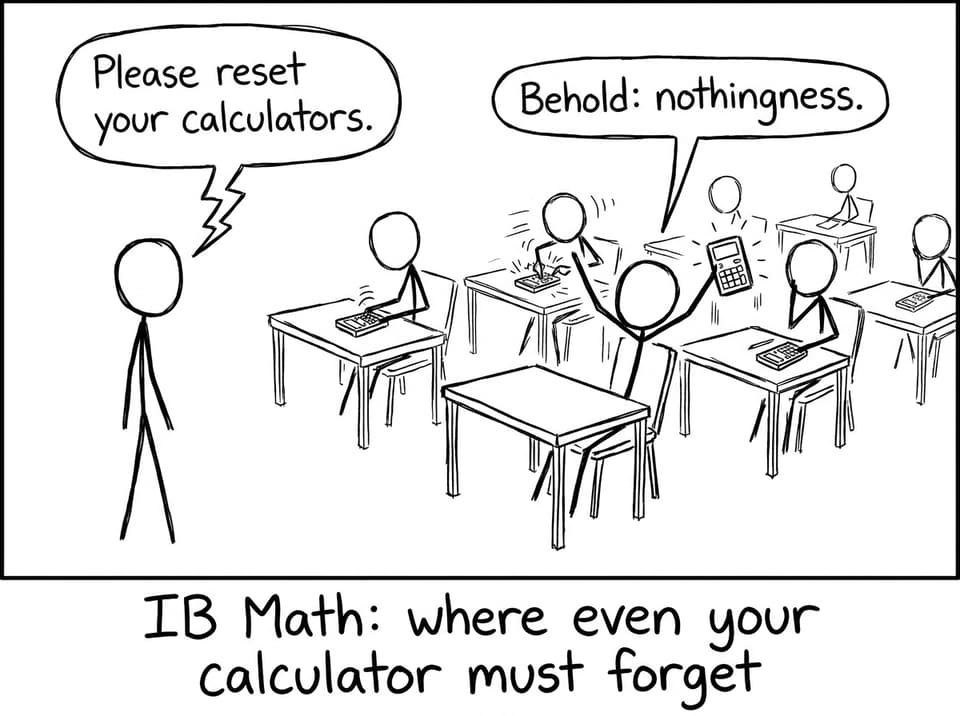
ZOOMthen6: ZStandardas a baseline. -
If the graph still looks odd, adjust
WINDOWrather than guessing. -
Press
GRAPH. -
Use
2ndthenTRACE (CALC)for the useful actions:-
2: Zero(roots) -
3: Minimum -
4: Maximum -
5: Intersect
-
This is the skill that turns “I think the solution is around 1.7?” into “I can justify an approximate root, then refine it.”
Need more calculator-specific practice routines? How to effectively use the TI-84 calculator for IB Math exams pairs well with this article.
Solving equations and simultaneous systems on the TI-84
In IB Math, solving is rarely about pressing a magic button. It’s about choosing the right representation.
Best method: solve by graphing
-
Put the expression into
Y1. -
Use
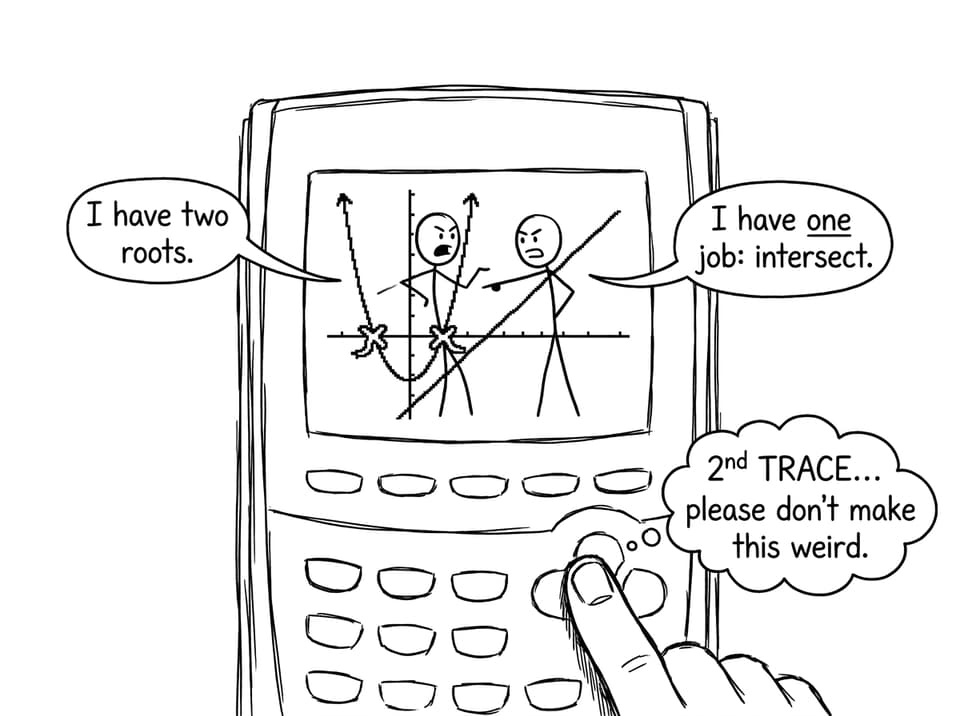
2nd+TRACE+2: Zero. -
For simultaneous equations, graph both (
Y1,Y2) and use5: Intersect.
This is especially helpful when algebra would be long, messy, or designed to tempt errors.
Alternative: numeric solver
The TI-84 also has a solver (accessed from menus), but graphing is often faster because you can see whether there are multiple solutions and roughly where they live.
Statistics and probability for IB Math
Stats is where the TI-84 stops being convenient and starts being essential.
Entering data and running regression
-
STAT->EDITto enter lists (L1, L2). -
STAT->CALCto choose a model (linear, quadratic, exponential, etc.). -
Store the regression equation into
Y1so you can compare it to a scatter plot.
The hidden skill is interpretation: slope, intercept, and reasonableness matter more than the button presses.
If you want stats concepts that often appear next to calculator questions, RevisionDojo’s AA notes are a strong companion, like Z values and inverse normal (AA SL).
Distribution functions you should know exist
In 2nd -> VARS (DISTR), you’ll find tools that frequently appear in IB Math probability:
-
normalcdffor probabilities between bounds -
invNormfor finding a value given a probability -
binompdfandbinomcdffor binomial settings
Matrices and vectors (quietly useful)
Matrices show up when you least want them to. The TI-84 can still help you move quickly.
-
Press
2nd->x^-1(MATRIX) -
Use
EDITto define a matrix (A, B, etc.) -
Then compute:
-
inverse:
A^-1 -
determinant:
det(A) -
products:
A*B
-
For vectors, you can treat them like 2x1 or 3x1 matrices when appropriate.
Calculus tools: nDeriv and fnInt
In IB Math AA, calculus on the TI-84 is mostly numerical. That’s fine, as long as you do two things: state what you’re calculating, and interpret it.
-
Numerical derivative:
MATH->8: nDeriv( -
Numerical integral:
MATH->9: fnInt(
A strong exam habit: after you compute, write one sentence explaining the meaning (rate of change, area, accumulation) and check if the magnitude makes sense.
Practice like an IB Math student, not a button collector
It’s tempting to learn the TI-84 as a list of tricks. But exam confidence comes from repeated, boring reps:
-
Do a set of tech-heavy questions.
-
Mark what slowed you down.
-
Rehearse the exact key sequence until it feels automatic.
RevisionDojo makes this loop easier because you can combine targeted practice with feedback:
-
Use the IB Math AA topic hub to find the exact syllabus area you’re revising.
-
Drill weak skills in the AA Calculus Questionbank or the AA Geometry and Trigonometry Questionbank.
-
Build retention with flashcards and quick checks, then test again.
For full exam rehearsal, RevisionDojo’s IB Predicted Papers and Mock Exams help you practice timing and stamina under realistic conditions.
Closing: make IB Math feel calmer
A TI-84 doesn’t create understanding. But in IB Math, it can protect your time, reduce your arithmetic load, and give you fast visual feedback. The difference between stress and confidence is usually just repetition: the same menu paths, the same graph workflow, the same interpretation habits.
If you want your calculator skills to translate into marks, build your routine inside RevisionDojo: use Study Notes to clarify concepts, drill with the Questionbank, lock in recall with Flashcards, ask targeted “why did I lose marks?” questions in AI Chat, and rehearse exam conditions with Predicted Papers and Mock Exams. Then use Grading tools and Tutors when you want direct feedback.
The goal isn’t to become a TI-84 expert. The goal is to make IB Math feel manageable when it matters most.